Print at actual size
"Fit to page" can resize the sheet, and then the lower rows drift off their labels. The PDF opens at 100%; keep it there.
Word mail merge · Update Labels
Updated
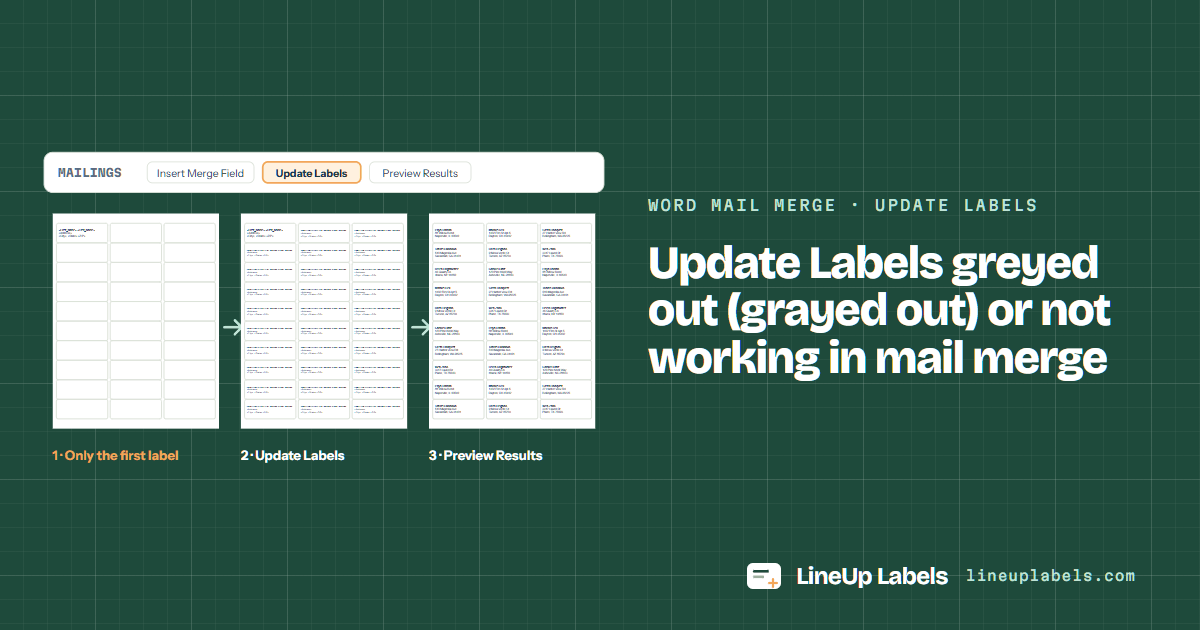
The fix in Word: Mailings > Start Mail Merge > Labels, then Select Recipients > Use an Existing List, then Update Labels (on a Mac the same menus sit under Mailings). The button stays greyed out (grayed out) until the document is a labels merge with a list connected. It then copies the first label to every other one with «Next Record» in front, and the names show after Preview Results. Other symptoms are below, or open the same list here and skip the button.
Another problem? All seven mail merge fixes
From the button you can't click to the page that won't print. Word's menus for Windows and for a Mac, from Microsoft's help, read on October 9, 2026.
Cause 1 · you see
Word's merge commands stay dimmed until the document has a list to merge, and Update Labels only belongs to a label merge.
Microsoft: dimmed merge commands · Microsoft: label merge steps · Microsoft: data sources
Cause 2 · you see
Update Labels copies the first label as it is. Clicked before any field went into it, it copies an empty label.
Cause 3 · you see
That's what Update Labels writes: «Next Record» in front of every label after the first. The names show only in a preview, and {NEXT} is the same field with its code showing.
Microsoft: Toggle Field Codes · Microsoft: Alt+F9 and Option+F9 · Microsoft: fields can't be typed
Cause 4 · you see
Update Labels copies once. A field added, a font changed or a line deleted later stays on the first label until you copy it again.
Cause 5 · you see
In Word's step-by-step wizard on Windows, the same command is a link in the task pane, under Arrange your labels.
Cause 6 · you see
Rows unticked in the recipient list are left out, and merging the Current record prints only the one on screen.
Microsoft: edit recipients · Microsoft: All or Current record
Do it here
Paste the list you were merging, or open its workbook. Each row prints on its own label, so there's no first label to copy and nothing to update.
Worked example
What Update Labels does in Word, row by row, happens here as the list is read.
| Row | First | Last | Address | City | State | ZIP |
|---|---|---|---|---|---|---|
| 2 | Priya | Raman | 88 Willow Bend | Naperville | IL | 60540 |
| 3 | Marcus | Bell | 1402 Elm St Apt 5 | Dayton | OH | 45402 |
| 4 | Greta | Lindqvist | 27 Harbor View Rd | Bellingham | WA | 98225 |
| 8 | Helen | Brightwater | 46 Quarry Ln | Ithaca | NY | 14850 |
The workbook or CSV file as it is, with its header row. The column names tell the editor the name, street, city, state and ZIP.
The number you chose in Word's Label Options, the one on your box. Start at any label of a sheet already used.
Every row is on its label in the PDF. Print one page on plain paper first and hold it over a sheet.
The same number in Word and here, the one on the box. Each has a template page with its measurements from Avery's own files.
| Sheet | Label size | Per sheet | Same layout | Good for |
|---|---|---|---|---|
| Avery® 5160 | 1 × 2-5/8 in | 30 | 8160 · 9160 · 18160 +56 | Three lines of a member list, 30 to a sheet. |
| Avery® 5162 | 1-1/3 × 4 in | 14 | 8162 · 5262 · 5522 +8 | A fourth line for a company or a title, 1-1/3 in tall. |
| Avery® 5163 | 2 × 4 in | 10 | 8163 · 18163 · 48163 +29 | A ship-to address with a line or two to spare. |
Alt+F9 · Option+F9
A label sheet in Word is a table, a label a cell. Show the field codes and you can see why a label repeats a name or stays empty: the row moves on only where a NEXT field is.
| Label | Its field codes | What it prints |
|---|---|---|
| Top-left label | { MERGEFIELD First_Name } { MERGEFIELD Last_Name } | Priya Raman, from row 2 of the list |
| Second label | { NEXT }{ MERGEFIELD First_Name } { MERGEFIELD Last_Name } | Marcus Bell: NEXT moves on to row 3 first |
| Third label | { NEXT }{ MERGEFIELD First_Name } { MERGEFIELD Last_Name } | and so on, one row a label |
| A label with no NEXT | { MERGEFIELD First_Name } { MERGEFIELD Last_Name } | Marcus Bell again: the row doesn't change |
"Fit to page" can resize the sheet, and then the lower rows drift off their labels. The PDF opens at 100%; keep it there.
Printers differ: some print on the side facing up in the tray, others on the side facing down. Mark an X on a plain sheet, print once and look before you load labels.
Hold a plain-paper print over a 5160 sheet against a window. If it sits off, calibrate once and save the correction for that printer.
The document isn't connected to a list, or it isn't a label merge. Start with Mailings > Start Mail Merge > Labels, then Select Recipients; Word's merge commands come on once it has a list (cause 1).
Set up the top-left label with its fields, then Mailings > Update Labels; in the Windows wizard the link is Update all labels, under Arrange your labels (Microsoft's steps).
The others are empty until Update Labels copies the first one to them. If it did and they show «Next Record», choose Preview Results to see the names (cause 3).
It moves the merge on to the next row of your list. Every label after the first needs one; a label without it repeats the previous row's name (what each label holds).
Yes. It copies the first label once; change a field or a font on it and choose Update Labels again (cause 4).
Yes: open the list above. Each row becomes its own label and the PDF is made in your browser, at the size of the sheet.
The editor fills every label from your rows: change the lines once, leave out duplicates, sort by last name or ZIP code.