Word mail merge · missing pages

Mail merge labels only printing the first page, or one label per page

Updated

The fix in Word: Mailings > Finish & Merge > Edit Individual Documents, then All on Windows. Word shows a single sheet of labels however long your list is; the other pages are made only when the merge finishes, and Current record merges just the address on screen. One label on each page means the merge was started as letters. Each cause is below, or open the same list here: every page comes in one PDF.

Another problem? All seven mail merge fixes

  • Every page in one PDF
  • Menus from Microsoft's help
  • Your list stays on this device
MAILINGS Preview Results Finish & Merge Amara Whitlock412 Juniper StBoise, ID 83702Desmond Yao88 Lakeside TerMadison, WI 53703Farah Castellanos1907 Rio Grande StAustin, TX 78701Gideon Park35 Pearl St Apt 4Denver, CO 80203Hattie Mbeki620 Hillsborough StRaleigh, NC 27601Ivo Lindgren14 Boston AveTulsa, OK 74103Jacinta Rowe2231 Kern StFresno, CA 93721Kofi Brandt509 Harney StOmaha, NE 68102Leonie Vasquez77 Bayshore CtTampa, FL 33602Mateus Okafor340 Ralston StReno, NV 89501Nadia Feldman1616 Willamette StEugene, OR 97401Otis Haverford925 Court CTacoma, WA 98402Paloma Reyes58 Mulberry StMacon, GA 31201Quentin Ashby301 Bluff StAkron, OH 44308Rhea Sandoval1410 Adams StToledo, OH 43604Soren Mackie27 Roberts St NFargo, ND 58102Talia Greenhalgh812 Lewis AveBillings, MT 59101Ugo Mancini1045 O StLincoln, NE 68508Viola Petrenko230 Waco AveWichita, KS 67202Wendell Achebe64 Conti StMobile, AL 36602Ximena Holt1119 Sprague AveSpokane, WA 99201Yusra Kline402 Fulton StPeoria, IL 61602Zane Ostrowski18 Superior StDuluth, MN 55802Adele Nakagawa2504 BroadwayLubbock, TX 79401Bram Castillo131 Union AvePueblo, CO 81003Celeste Dunmore915 Kansas AveTopeka, KS 66603Dmitri Hale2460 Kiesel AveOgden, UT 84401Elodie Marchetti22 State StErie, PA 16501Fenwick Osei540 Saginaw StFlint, MI 48502Jonah Vega73 Pearl StAlbany, NY 12207 1 · The page Word shows Ines Thackeray316 Campbell AveRoanoke, VA 24011Kasim Lowell608 Gay StKnoxville, TN 37902Liesel Abara1201 Mesa StEl Paso, TX 79901Milo Fairchild49 Phillips AveSioux Falls, SD 57104 2 · Addresses 31 to 34 Merge to New Document Merge records All Current record From To OK 3 · Merge All

Five reasons the other pages are missing.

By what the print looks like. Word's menus for Windows and for a Mac, from Microsoft's help, read on November 9, 2026.

A label merge comes out short of pages in one of five ways. Word shows one page, however long the list: finish the merge to see every page. Only the first page prints: merge All the records, and print all the pages. The pages stop before the list does: tick every row, clear the filter and give Word the whole sheet. One label on each page: start the merge again as Labels. Every label on the page shows one name: let Update Labels put «Next Record» in every label after the first.

  1. Cause 1 · you see

    Word shows one page, however long the list

    The label document is a single sheet: a table with one label in each cell. Preview Results fills it from the top of your list, and the other pages are only made when the merge finishes.

    Windows
    Mailings > Finish & Merge > Edit Individual Documents > All
    Mac
    Mailings > Finish & Merge > Edit Individual Documents
    Step by step
    1. Choose Preview Results: the sheet shows the first addresses of the list, one to a label.
    2. The arrows beside it move through the list a record at a time. They never add a page.
    3. Choose Finish & Merge > Edit Individual Documents. Word opens a new document with every page of labels: count its pages, then print it with File > Print.

    Microsoft: a sheet of labels is a table · Microsoft: Next and Previous move through records · Microsoft: Edit Individual Documents, then File > Print

  2. Cause 2 · you see

    Only the first page prints

    Word asks which records to merge. Current record takes the one in the window and From and To take a range, so the rest of the list never reaches the printer.

    Windows
    Finish & Merge > Edit Individual Documents > All, then File > Print
    Mac
    Mailings > Finish & Merge > Print Documents
    Step by step
    1. On Windows, choose Finish & Merge > Edit Individual Documents and select All. Current record merges only the record you see in the document window.
    2. Print the document Word opens. In File > Print, leave Settings on Print All Pages: Print Current Page prints the one page in the preview.
    3. On a Mac, Microsoft's steps end with Mailings > Finish & Merge > Print Documents.

    Microsoft: All, Current record, From and To · Microsoft: Print All Pages or Print Current Page · Microsoft: Print Documents

  3. Cause 3 · you see

    The pages stop before the list does

    Rows unticked or filtered out in Word are left off the labels, and a cell range typed when the workbook was opened on a Mac limits the merge to those cells.

    Windows
    Mailings > Edit Recipient List
    Mac
    Mailings > Filter Recipients
    Step by step
    1. On Windows, open Edit Recipient List. Every row starts ticked: tick the ones that were cleared, and clear any filter.
    2. On a Mac, clear the filter in Filter Recipients.
    3. Also on a Mac, connect the workbook again and leave Cell Range blank, so Word takes the entire worksheet.
    4. Keep the whole list on the first sheet of the workbook, under one header row.

    Microsoft: edit recipients · Microsoft: leave Cell Range blank · Microsoft: the list on the first sheet

  4. Cause 4 · you see

    One label on each page

    The merge was started as letters. Word gives each letter a sheet of paper to itself, so every address prints alone at the top of a page.

    Windows
    Mailings > Start Mail Merge > Labels
    Mac
    Mailings > Start Mail Merge > Labels
    Step by step
    1. Open a new document and choose Mailings > Start Mail Merge > Labels.
    2. In Label Options, pick the product number printed on your box.
    3. Connect the list, put the fields in the top-left label and choose Update Labels.

    Microsoft: each letter prints on a separate sheet · Microsoft: label merge steps

  5. Cause 5 · you see

    Every label on the page shows one name

    Word moves to the next address only where a label starts with «Next Record». On a sheet without it, every label reads the same row.

    Windows
    Mailings > Update Labels
    Mac
    Mailings > Update Labels
    Step by step
    1. Keep the top-left label and delete the text of the others.
    2. Choose Update Labels: Word copies the first label to the rest, each with «Next Record» in front.
    3. To add the rule to one label yourself, click at its start and choose Mailings > Rules > Next Record.
    4. What each label holds underneath, field by field.

    Microsoft: the Next Record rule · Microsoft: Update Labels fills the sheet

Do it here

Every page at once.

Paste the list you were merging, or open its workbook. A list longer than one sheet runs on to the next page of the PDF. You pick no records and run no merge.

Cells copied from Excel, Google Sheets or Numbers, header row included, or addresses with a blank line between them.

The number on your box

Open the full editor

The sheet shows the sample: a 34-address roster. Paste your list or open a file, and it shows yours.

Your list stays on this device. Nothing is uploaded.

Amara Whitlock412 Juniper StBoise, ID 83702Desmond Yao88 Lakeside TerMadison, WI 53703Farah Castellanos1907 Rio Grande StAustin, TX 78701Gideon Park35 Pearl St Apt 4Denver, CO 80203Hattie Mbeki620 Hillsborough StRaleigh, NC 27601Ivo Lindgren14 Boston AveTulsa, OK 74103Jacinta Rowe2231 Kern StFresno, CA 93721Kofi Brandt509 Harney StOmaha, NE 68102Leonie Vasquez77 Bayshore CtTampa, FL 33602Mateus Okafor340 Ralston StReno, NV 89501Nadia Feldman1616 Willamette StEugene, OR 97401Otis Haverford925 Court CTacoma, WA 98402Paloma Reyes58 Mulberry StMacon, GA 31201Quentin Ashby301 Bluff StAkron, OH 44308Rhea Sandoval1410 Adams StToledo, OH 43604Soren Mackie27 Roberts St NFargo, ND 58102Talia Greenhalgh812 Lewis AveBillings, MT 59101Ugo Mancini1045 O StLincoln, NE 68508Viola Petrenko230 Waco AveWichita, KS 67202Wendell Achebe64 Conti StMobile, AL 36602Ximena Holt1119 Sprague AveSpokane, WA 99201Yusra Kline402 Fulton StPeoria, IL 61602Zane Ostrowski18 Superior StDuluth, MN 55802Adele Nakagawa2504 BroadwayLubbock, TX 79401Bram Castillo131 Union AvePueblo, CO 81003Celeste Dunmore915 Kansas AveTopeka, KS 66603Dmitri Hale2460 Kiesel AveOgden, UT 84401Elodie Marchetti22 State StErie, PA 16501Fenwick Osei540 Saginaw StFlint, MI 48502Jonah Vega73 Pearl StAlbany, NY 12207
Sample list · 34 labels on 5160

Worked example

Address 31 starts page 2.

A sheet of 5160 takes 30. The rest of the list goes on to the next page of the same PDF.

In your spreadsheet

roster.xlsx

4 rows of the sample list
RowFirstLastAddressCityStateZIP
2AmaraWhitlock412 Juniper StBoiseID83702
31JonahVega73 Pearl StAlbanyNY12207
32InesThackeray316 Campbell AveRoanokeVA24011
35MiloFairchild49 Phillips AveSioux FallsSD57104
On the 5160 sheet, as listed
  1. Amara Whitlock412 Juniper StBoise, ID 83702
  2. Jonah Vega73 Pearl StAlbany, NY 12207
  3. Ines Thackeray316 Campbell AveRoanoke, VA 24011
  4. Milo Fairchild49 Phillips AveSioux Falls, SD 57104
  • 34 addresses at 30 to a sheet: 2 pages in one PDF.
  • Ines Thackeray is address 31, on row 32 of the workbook under its header: the first label of page 2.
  • The last page carries the 4 that are left over.

All the pages in three steps, without the merge.

  1. Open the whole list

    The workbook or CSV file you gave Word, with its header row. Every row is read, so a row unticked in Word is back until you delete it.

  2. Pick the sheet

    The number on your box. The line under the list says how many labels it makes and how many sheets they fill.

  3. Download and print at 100%

    One PDF with every page. To print a single sheet again, print that page of the PDF alone.

Labels to a page, by number

The number on the box sets how many addresses a page takes, and so how many pages a list fills. Counts from Avery's own template files.

Labels to a page, by number: size, labels per sheet and the numbers that share each layout
SheetLabel sizePer sheetSame layoutGood for
Avery® 5160 1 × 2-5/8 in 30 8160 · 9160 · 18160 +56 Thirty to a page: a list of 100 fills 4 sheets.
Avery® 5161 1 × 4 in 20 8161 · 5261 · 5909 +19 Twenty to a page: a list of 100 fills 5 sheets.
Avery® 5163 2 × 4 in 10 8163 · 18163 · 48163 +29 Ten to a page: a list of 100 fills 10 sheets.

Records and pages

Which addresses land on which page.

A page takes as many records as the sheet has labels. Record 31 is the first label of page 2 on Avery 5160; on a sheet with fewer labels it comes sooner.

The records Word puts on each of the first four pages of a label merge, by Avery sheet
PageAvery 5160 · 30 a sheetAvery 5161 · 20 a sheetAvery 5163 · 10 a sheet
Page 1Records 1 to 30Records 1 to 20Records 1 to 10
Page 2Records 31 to 60Records 21 to 40Records 11 to 20
Page 3Records 61 to 90Records 41 to 60Records 21 to 30
Page 4Records 91 to 120Records 61 to 80Records 31 to 40
  • One page to print again? Merge its records alone: Finish & Merge > Edit Individual Documents, with 31 in From and 60 in To for page 2 of 5160 (Microsoft's steps).
  • How many sheets to buy? Divide the rows by the labels on a sheet and round up. 100 rows take 4 sheets of 5160, 5 sheets of 5161 or 10 sheets of 5163; the last sheet of 5160 carries 10.
  • The numbers count what Word merges, in its order. A row unticked, a filter or a sort in the recipient list moves every record after it.
  • Here there are no record numbers. The PDF holds every page, and Start at label skips the labels a used sheet has lost.

Three things that keep 5160 labels straight.

Print at actual size

"Fit to page" can resize the sheet, and then the lower rows drift off their labels. The PDF opens at 100%; keep it there.

Feed the right side up

Printers differ: some print on the side facing up in the tray, others on the side facing down. Mark an X on a plain sheet, print once and look before you load labels.

Test on plain paper

Hold a plain-paper print over a 5160 sheet against a window. If it sits off, calibrate once and save the correction for that printer.

Questions people ask

Why does my mail merge only show one page of labels?

The label document is a single sheet, a table with one label in each cell. Preview Results fills it from the top of your list; the other pages appear when you choose Finish & Merge > Edit Individual Documents (cause 1).

Why is my mail merge only printing the first page of labels?

Word merged one record or a range of them. Choose Finish & Merge > Edit Individual Documents and select All, then print with Settings on Print All Pages (cause 2). Rows unticked in the recipient list are left out too (cause 3).

Why does mail merge print one label per page?

The merge was started as letters, and Word prints each letter on a separate sheet. Start a new one with Mailings > Start Mail Merge > Labels (cause 4).

Why does every label on the page show the same name?

The labels after the first have no «Next Record» in front, so each reads the same row. Keep the first label and choose Update Labels (cause 5).

How do I print only the second page of labels?

Merge that page's records alone. On Avery 5160 they are 31 to 60: type them in From and To under Edit Individual Documents (which records are on which page).

Can I print all the labels without a mail merge?

Yes: open the list above. Each row becomes its own label and the PDF has every page, made in your browser at the size of the sheet.

A long list, every page in one file

The editor opens the same workbook, sorts it by last name or ZIP code, leaves out duplicates and starts on any label of a sheet already used.
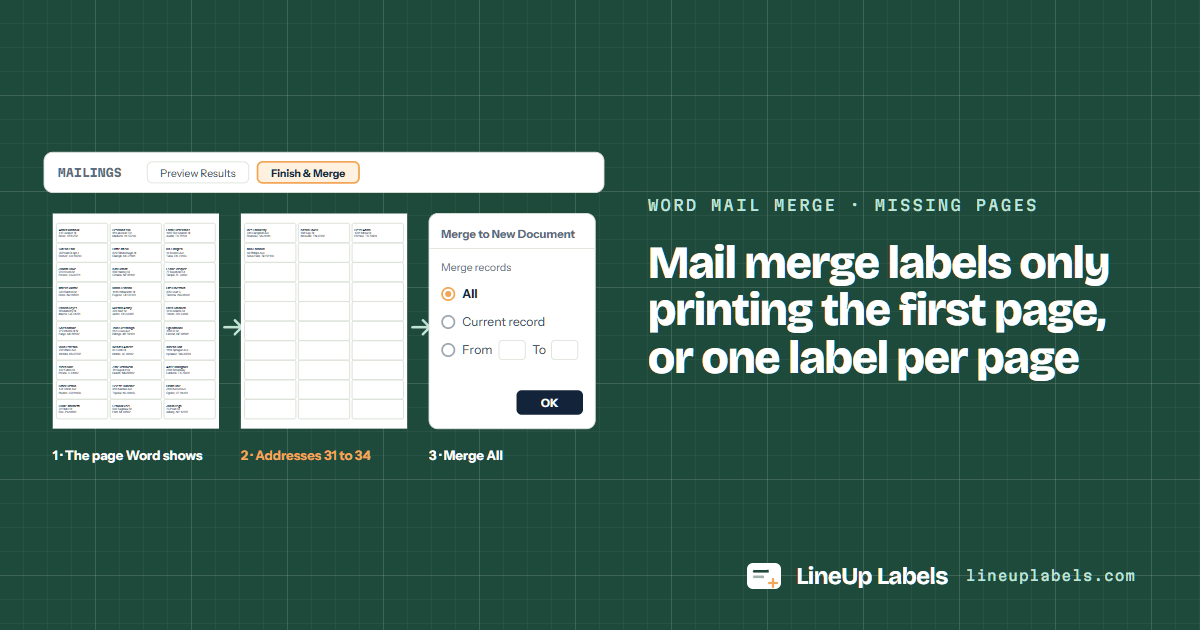
A Word mail merge on Avery 5160 labels: the one page Word shows with thirty addresses, the second page with the rest that never printed, and the Merge to New Document box with All chosen