Print at actual size
"Fit to page" can resize the sheet, and then the lower rows drift off their labels. The PDF opens at 100%; keep it there.
LibreOffice Writer · Calc · Avery 5160
Updated
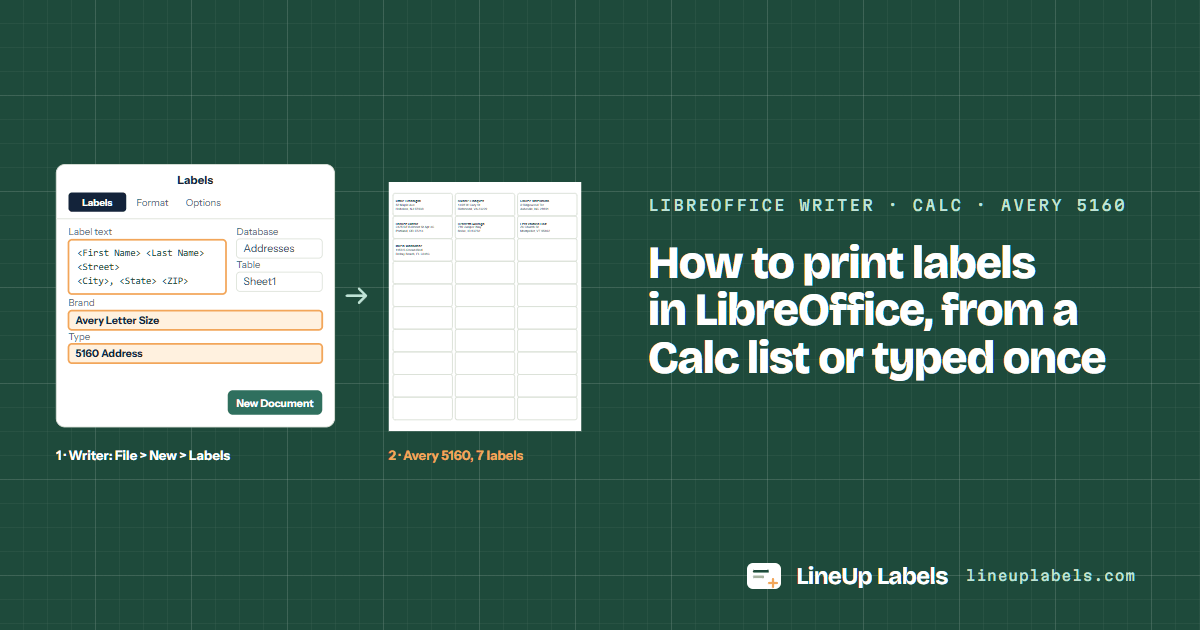
LibreOffice Writer has Avery® 5160 built in: File > New > Labels, then Brand Avery Letter Size and Type 5160 Address. For a list, register the Calc file as a data source with File > New > Database, pick its fields in the same dialog, and answer Yes when printing asks about a form letter. Or save the sheet as CSV or .xlsx and open it here for a PDF.
Merge · same text · open here
LibreOffice's menus, from its own help pages, read on November 16, 2026. On a Mac, Options sits under LibreOffice > Preferences.
LibreOffice Writer has Avery's US sheets built in, so a sheet of labels comes three ways. A list in Calc, merged in Writer merges in Writer once the sheet is a registered data source. One text on every label comes straight from the Labels dialog. A list in Calc, saved as CSV or .xlsx opens here once Calc saves it as CSV or .xlsx.
| What goes on the labels | How | Best for |
|---|---|---|
| A list in Calc, merged in Writer | Register the spreadsheet as a data source (File > New > Database), then pick its fields in File > New > Labels. Printing asks whether to print a form letter: answer Yes (LibreOffice's steps). Each step. | A list you keep in Calc and print from again each year. |
| One text on every label | File > New > Labels, then type it in Label text, or tick Address to fill in your name and address from Tools > Options > LibreOffice > User Data (LibreOffice's steps). | Return address labels, jar labels, a name on every tag. |
| A list in Calc, saved as CSV or .xlsx | File > Save As, then Text CSV or .xlsx as the file type; a CSV keeps only the sheet you are on (LibreOffice's steps). Open the file above. | A list printed now, with no data source to set up, or a sheet already half used. |
Do it here
Save the sheet from Calc as Text CSV or .xlsx, then open it here: each row becomes a label. Calc's own .ods files aren't read, and nothing is uploaded.
Worked example
The CSV file Calc saves, opened as it comes: a ZIP code keeps its leading zero and an apartment stays on the street line.
| Row | First Name | Last Name | Street | City | State | ZIP |
|---|---|---|---|---|---|---|
| 2 | Ottilie | Brannigan | 52 Maple Ave | Hoboken | NJ | 07030 |
| 3 | Kwame | Lindqvist | 1408 W Cary St | Richmond | VA | 23220 |
| 5 | Dariusz | Okafor | 3125 SE Belmont St Apt 4C | Portland | OR | 97214 |
| 7 | Ezra | Valdivia-Holt | 26 Church St | Montpelier | VT | 05602 |
File > Save As, then Text CSV or .xlsx as the file type (LibreOffice's steps). A CSV holds only the sheet you are on.
In any browser, on Windows, a Mac or Linux. Each row of the sheet becomes one label.
And Start at label, if the sheet has labels missing. The line under the list says how many sheets you need.
Open the PDF and print it at its own size, not scaled to fit the page.
Sizes from Avery's own template files. LibreOffice's built-in types for the same numbers land within a hair of them.
| Sheet | Label size | Per sheet | Same layout | Good for |
|---|---|---|---|---|
| Avery® 5160 | 1 × 2-5/8 in | 30 | 8160 · 9160 · 18160 +56 | Most addresses: 30 to a sheet, three lines at 10 pt. |
| Avery® 5161 | 1 × 4 in | 20 | 8161 · 5261 · 5909 +19 | Long street names: 20 labels 4 in wide. |
| Avery® 5163 | 2 × 4 in | 10 | 8163 · 18163 · 48163 +29 | Parcels and big envelopes: 10 labels of 2 × 4 in. |
Brand and Type
We set LibreOffice's measures for each type, as its label list gives them, against Avery's own template files, edge by edge.
| Sheet | In LibreOffice (Brand › Type) | Labels | Furthest edge from Avery's file |
|---|---|---|---|
| Avery 5160 | Avery Letter Size › 5160 Address | 30 of 1 × 2-5/8 in | under 0.001 in |
| Avery 5161 | Avery Letter Size › 5161 Address | 20 of 1 × 4 in | 0.011 in (0.3 mm) |
| Avery 5163 | Avery Letter Size › 5163 Address / Shipping | 10 of 2 × 4 in | under 0.001 in |
| Avery 5167 | Avery Letter Size › 5167 Return Address | 80 of 1/2 × 1-3/4 in | 0.02 in (0.5 mm) |
Calc to Writer
Writer reads the list from a registered data source, so the first step happens once per spreadsheet.
A merge in Word that fills one label or stops after a page: seven fixes for mail merge labels.
"Fit to page" can resize the sheet, and then the lower rows drift off their labels. The PDF opens at 100%; keep it there.
Printers differ: some print on the side facing up in the tray, others on the side facing down. Mark an X on a plain sheet, print once and look before you load labels.
Hold a plain-paper print over a 5160 sheet against a window. If it sits off, calibrate once and save the correction for that printer.
Yes, built in: File > New > Labels, then Brand Avery Letter Size and Type 5160 Address (LibreOffice's steps). Its labels land under 0.001 in from Avery's own file, and 5260, 5960 and 8160 Ink Jet Address sit in the same list with the same measures.
Register the Calc file with File > New > Database, then in File > New > Labels pick the database, the table and the fields. Click New Document, print, and answer Yes to the form letter question (LibreOffice's steps). Each step.
Writer inserts fields from registered databases only. Run File > New > Database, connect to the spreadsheet and keep Yes, register the database for me (LibreOffice's note).
In File > New > Labels, type the text in Label text, or tick Address for your own from User Data, and keep Entire Page on the Options tab. With Synchronize contents on, format the top left label and click Synchronize Labels (LibreOffice's steps).
Yes. When the Mail Merge dialog opens, give the first and last record under From and To (LibreOffice's steps). Here, delete the rows you don't want from the box above before you download.
Not an .ods. Save the sheet as Text CSV or .xlsx first and open that. The file is read in your browser and the PDF is made there: nothing is uploaded or stored.
The editor opens the same file and does more: sort by last name or ZIP code, leave out duplicates, change the lines, print copies.