Print at actual size
"Fit to page" can resize the sheet, and then the lower rows drift off their labels. The PDF opens at 100%; keep it there.
Mac · Contacts · Numbers · Pages
Updated
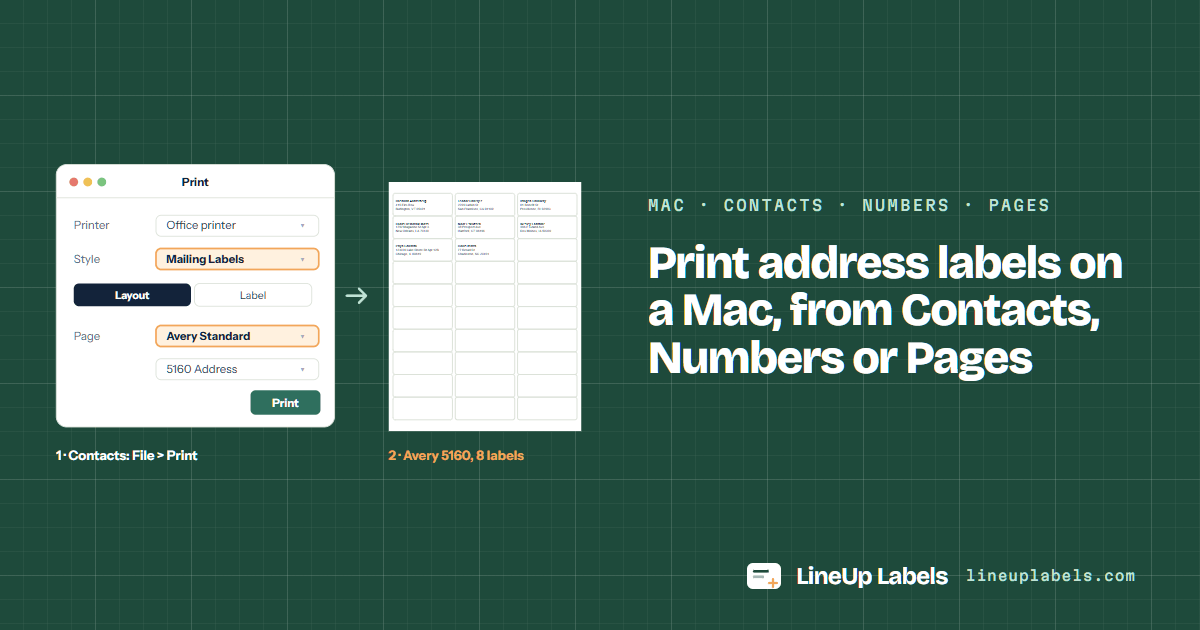
The Contacts app prints them by itself: select the people, choose File > Print, then Mailing Labels in the Style menu and a page type such as Avery Standard under Layout. A list in Numbers or Excel opens here as a CSV or .xlsx file, and so do contacts exported as a vCard. Pages' mail merge makes one copy of the page per person, so it suits letters better than a sheet of labels.
Contacts · Numbers · Pages
Apple's menus, from its help for Contacts, Numbers and Pages, read on November 11, 2026.
On a Mac, a sheet of address labels comes from one of four places. The Contacts app prints labels by itself. A list in Numbers or Excel opens here as a CSV or .xlsx file. Contacts, in a file opens here as a .vcf file. Pages makes one copy of the page per person.
| Your addresses are in | How | Best for |
|---|---|---|
| The Contacts app | Select the people or a list, choose File > Print, then Mailing Labels in the Style menu. Under Layout, pick a page type such as Avery Standard (Apple's steps). | Addresses already on contact cards. Nothing to export. |
| A list in Numbers or Excel | In Numbers, choose File > Export To > CSV (Apple's steps); an Excel .xlsx needs no export. Open the file above. | A card list you keep and edit in a spreadsheet. |
| Contacts, in a file | Select the people, then File > Export > Export vCard (Apple's steps). Open the .vcf above. | Contacts on a sheet already half used, or sorted by last name or ZIP code. |
| Pages | Its mail merge takes the names from Contacts or a Numbers table and makes a copy of the document for each person (Apple's steps). | Letters, invitations and certificates. On a sheet of labels, a copy per person fills the page with one name. |
Word for Mac merges labels too, through Mailings > Start Mail Merge > Labels (Microsoft's steps). When it fills one label or stops after a page, here are seven fixes for mail merge labels.
Do it here
Open the CSV file Numbers exported, an Excel workbook, or the .vcf file Contacts saved. Each row or card becomes a label, read in Safari, Chrome or Firefox on your Mac.
Worked example
The file Numbers exports, opened as it comes: a ZIP code keeps its leading zero and an apartment stays on the street line.
| Row | First Name | Last Name | Street | City | State | ZIP |
|---|---|---|---|---|---|---|
| 2 | Rosalind | Achterberg | 415 Elm Row | Burlington | VT | 05401 |
| 4 | Imogen | Calloway | 61 Benefit St | Providence | RI | 02903 |
| 5 | Lucas | Delacroix-Moss | 1702 Magazine St Apt 3 | New Orleans | LA | 70130 |
| 8 | Priya | Gallardo | 1230 N Lake Shore Dr Apt 12B | Chicago | IL | 60610 |
In Numbers, choose File > Export To > CSV, then Save (Apple's steps). An Excel workbook opens as it is.
Select the people or a list, then File > Export > Export vCard (Apple's steps). The .vcf opens here too, each part of an address read on its own.
In Safari, Chrome or Firefox. Each row of the list, or each card of the vCard, becomes one label.
And Start at label, if the sheet has labels missing. The line under the list says how many sheets you need.
Open the PDF and print it at 100% (Actual size), not scaled to fit the page.
Sizes from Avery's own template files. The Contacts app's Avery Standard page types and this page use the same numbers.
| Sheet | Label size | Per sheet | Same layout | Good for |
|---|---|---|---|---|
| Avery® 5160 | 1 × 2-5/8 in | 30 | 8160 · 9160 · 18160 +56 | Most addresses: 30 to a sheet, three lines at 10 pt. |
| Avery® 5161 | 1 × 4 in | 20 | 8161 · 5261 · 5909 +19 | Long street names: the labels are 4 in wide, 20 to a sheet. |
| Avery® 5163 | 2 × 4 in | 10 | 8163 · 18163 · 48163 +29 | Parcels and big envelopes: 10 large labels of 2 × 4 in. |
The Contacts app
No spreadsheet and no export: the print window has a style for mailing labels. These are Apple's steps (Print mailing labels in Contacts).
Pages
Pages can merge names and addresses into a document. It is made for one copy of a page per person.
"Fit to page" can resize the sheet, and then the lower rows drift off their labels. The PDF opens at 100%; keep it there.
Printers differ: some print on the side facing up in the tray, others on the side facing down. Mark an X on a plain sheet, print once and look before you load labels.
Hold a plain-paper print over a 5160 sheet against a window. If it sits off, calibrate once and save the correction for that printer.
Two ways without Word. The Contacts app prints them by itself: File > Print, then Mailing Labels in the Style menu (Apple's steps). Or open your list above as a CSV, .xlsx or .vcf file and download a PDF for the sheet you bought.
Yes. In the print window choose Mailing Labels, then under Layout a page type such as Avery Standard, or Define Custom for a sheet of your own measurements (Apple's steps). Only cards with an address print.
Export the table with File > Export To > CSV, or Excel (Apple's steps), and open the file above: each row becomes a label. Pages can also take the table for a mail merge, one copy of the document per person.
Pages merges names from Contacts or a Numbers table into a document and makes a copy of it for each person (Apple's steps). On a sheet of labels that puts one name on every label of a page, so for a list, use Contacts or this page.
In Contacts, select your own card. For a full sheet of it, Apple's tip is a list with your card pasted once for each label (Apple's tip). Or type it once on the template for Avery® 5160 labels: it fills all 30.
No. The file is read in your browser and the PDF is made there too, in Safari as in Chrome. Nothing is uploaded, nothing is stored, and the list never goes in the page address.
The editor opens the same file and does more: sort by last name or ZIP code, leave out duplicates and cards with no address, change the lines, print copies.