Open it in Word
In Protected View, choose Enable Editing. Table Layout > View Gridlines (Microsoft's steps) outlines the 32 labels on screen; the lines never print.
ID labels · 32 per sheet
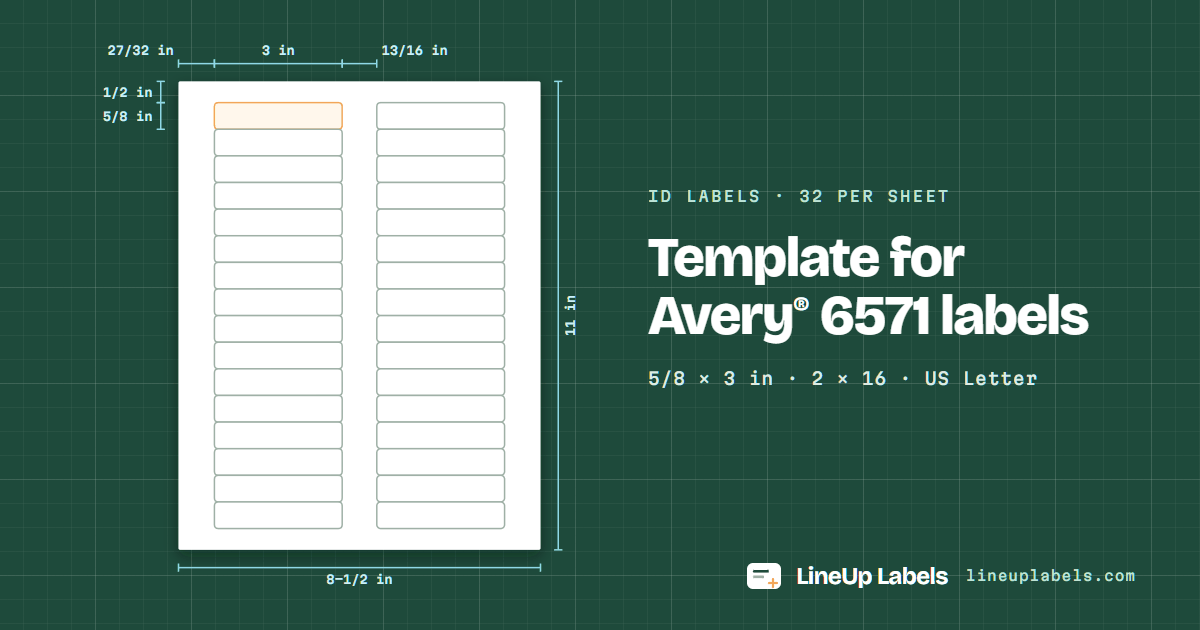
Avery® 6571 is a sheet of 32 ID labels, 5/8 × 3 in, in 2 columns of 16; 6577, 6792, 94214 and 97176 share its layout. The first label starts 1/2 in from the top edge and 27/32 in from the left edge; columns are 13/16 in apart and rows touch. The blank template comes as a PDF and as a Word file (.docx).
The blank PDF has every label's outline, for checking the layout on plain paper.
Same layout 6577 · 6792 · 94214 · 97176
Avery 6571 · 32 per sheet · drawn to scale
Try it here
The same text on every label of the sheet. For a list of different labels, open the editor and paste your spreadsheet.
Specifications
Checked against Avery's own template for 6571. The PDF places every label at these positions to a thousandth of a point, so the only thing left to tune is your printer.
| Label width | 3 in |
|---|---|
| Label height | 5/8 in |
| Labels per sheet | 32 2 across, 16 down |
| Sheet | US Letter, 8-1/2 × 11 in |
| Top margin | 1/2 in to the first row |
| Bottom margin | 1/2 in below the last row |
| Left margin | 27/32 in to the first column |
| Right margin | 27/32 in after the last column |
| Space between columns | 13/16 in |
| Space between rows | 0 in the rows touch |
| Column pitch | 3-13/16 in left edge to left edge |
| Row pitch | 5/8 in top edge to top edge |
| Corner radius | 3/32 in |
One table on a US Letter page, starting 1/2 in from the top and 27/32 in from the left: a cell for each of the 32 labels (5/8 × 3 in), with 13/16 in spacer columns between them; the rows touch. Saved as PDF from Word, every cell sits within 0.1 pt of where this page's PDF prints the label.
In Protected View, choose Enable Editing. Table Layout > View Gridlines (Microsoft's steps) outlines the 32 labels on screen; the lines never print.
Click in a label and type: 9 pt Arial, centered. Skip the spacer cells. Rows are fixed at 5/8 in, so text that runs past the bottom of a label is cut off.
Mailings > Labels does it without this file: Full page of the same label, then Options, Avery US Letter, 6571 if listed (Microsoft's steps). From a spreadsheet, use the editor.
Test on plain paper over a 6571 sheet first.
These Avery® products use exactly the 6571 sheet layout, so this template lines up on them too.
5/8 × 3 in · 32 per sheet
Avery® 6571 is a sheet of 32 ID labels, 5/8 × 3 in, in 2 columns of 16; 6577, 6792, 94214 and 97176 share its layout.
| Size | Lines | Characters on a line |
|---|---|---|
| 7 pt | 4 | 62 |
| 9 pt where it starts | 3 | 46 |
| 11 pt | 2 | 38 |
| Labels | Sheets | Left blank |
|---|---|---|
| 25 | 1 | 7 |
| 50 | 2 | 14 |
| 100 | 4 | 28 |
| 250 | 8 | 6 |
| 500 | 16 | 12 |
The 32 labels of 6571 cover 64% of the sheet; the other 36% is margin and the paper between them.
"Fit to page" can resize the sheet, and then the lower rows drift off their labels. The PDF opens at 100%; keep it there.
The box says whether 6571 is for laser or inkjet printers. Pick the paper type that matches in the print dialog, and print one plain sheet first.
There's no gap between 6571 labels from top to bottom, so a print that sits off shows at once on the next label. Print the test sheet before a full run.
3 in wide and 5/8 in tall, 32 per US Letter sheet in 2 columns and 16 rows.
Top 1/2 in, bottom 1/2 in, left 27/32 in and right 27/32 in; columns are 13/16 in apart and rows touch.
4 other products share the 6571 layout: 6577, 6792, 94214, 97176. If your box shows one of them, use this template.
In Word, yes: the Word file here is the 6571 sheet as a table to type in (how to use it). Word can also lay out the sheet itself: go to Mailings > Labels > Options, choose Avery US Letter under Label vendors, then 6571 as the product number (Microsoft's steps); on a Mac, an Avery option under Label products, then 6571 (Word for Mac). If it isn't listed, New Label takes the measurements above (custom labels). If a mail merge then fills only the first label or prints off the sheet, the mail merge fixes show what to change. Google Docs has no label sheets built in. Canva is made for designs; for a list of addresses, the editor fills every label from your spreadsheet.
Yes. Set "Start at label" to the first unused label: label 1 is the top left, and the count runs across each row. The labels before it stay blank.
Check that the print dialog says 100% (Actual size), not "Fit to page". If the print still sits a little off, print the test sheet on the calibration page and save a correction for your printer.
Paste your spreadsheet or open a CSV or Excel file: one label per row, on as many 6571 sheets as it takes.